IBE - Internet Booking Engine (IBE) Configuration User Guide
1. Overview
This configuration helps staff set up the Internet Booking Engine (IBE) for hotel operations. It ensures that the IBE is properly integrated with the hotel’s system to handle online reservations efficiently. Additionally, this setup includes configuring the payment interface to use 2C2P as the payment method within the IBE. By enabling this integration, guests can complete their bookings seamlessly with secure online payments, while staff benefit from accurate, real-time updates to the hotel’s reservation and financial records.
2. Core Interface Setup
Available under CORE > Config System & Validate > Core Interface Setup , this setting allows hotels to enable the Interface Booking Engine (IBE) functionality together with the Internet Gateway. Once enabled, the hotel’s IBE can accept online reservations and process secure payments via a configured gateway (such as 2C2P). Staff can also set up the Consent Setup, which defines the Terms & Conditions and hotel policies guests must agree to before booking. This ensures a seamless guest experience with real-time integration into the hotel’s systems.
2.1 Configure Interface Type
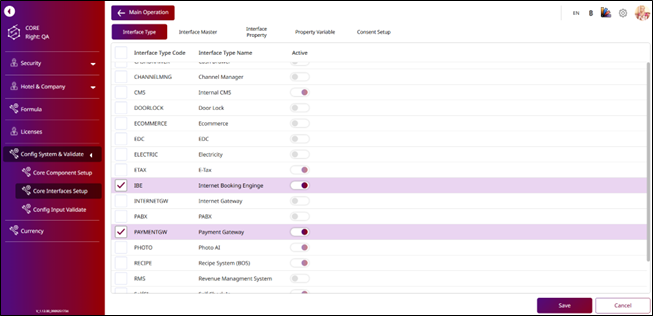
This setting allows hotels to enable the Interface Booking Engine (IBE) functionality together with the Internet Gateway. Once enabled, it provides guests with a seamless online booking experience while ensuring accurate, real-time integration with the hotel’s reservation system and financial records.
To perform the task:
- Select Internal Booking Engine and turn on the toggle to activate this Interface Type Name.
- Select Payment Gateway and turn on the toggle to activate this Interface Type Name.
- Press Save to apply the changes.
2.2 Configure Interface Master
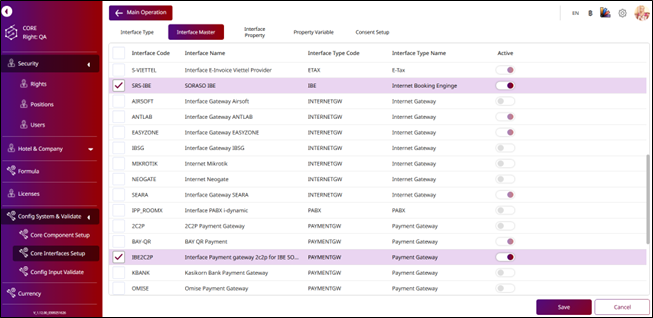
This function allows staff to enable the SORASO IBE and configure the 2C2P Payment Gateway for use with SORASO IBE. Activating this interface ensures that the Internet Booking Engine is fully functional, allowing guests to make reservations online and complete secure payments through the integrated 2C2P gateway.
To perform the task:
- Select SORASO IBE and turn on the toggle to activate this Interface Name.
- Select Interface Payment Gateway 2C2P for IBE SORASO and turn on the toggle to activate this Interface Name.
- Press Save to apply the changes.
2.3 Configure Interface Property
This function allows staff to enable the SORASO IBE and configure the 2C2P Payment Gateway for a specific hotel within the IBE system. Enabling this ensures the Internet Booking Engine is ready for use, allowing guests to book online and make secure payments through the 2C2P integration.
To perform the task:
- Select the Hotel.
- Select SORASO IBE and turn on the toggle to activate this Interface Name.
- Select Interface Payment Gateway 2C2P for IBE SORASO and turn on the toggle to activate this Interface Name.
- Press Save to apply the changes.
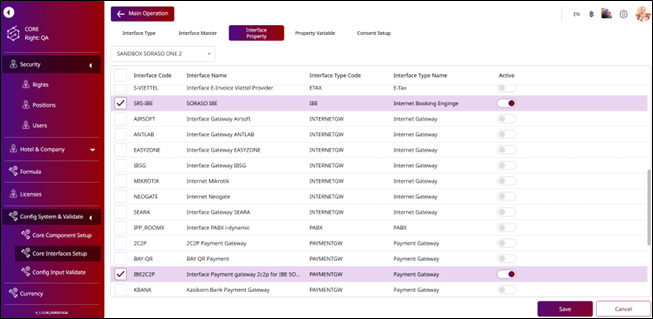
Note: Ensure that both the SORASO IBE and the 2C2P Payment Gateway for SORASO IBE are enabled for the hotel before use.
2.4 Configure Property Variable
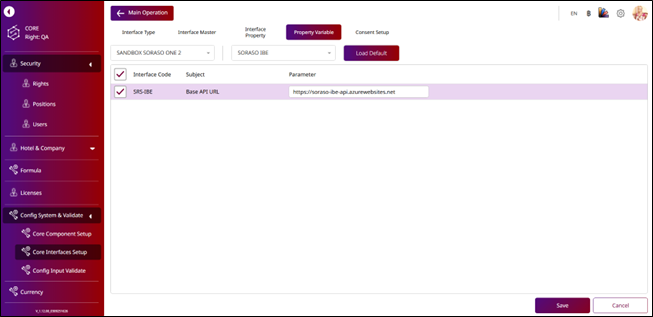
This function allows staff to configure the base API for the Internet Booking Engine (IBE) and set up the 2C2P Payment Gateway for SORASO IBE. Proper setup ensures that the IBE can communicate seamlessly with the hotel’s system and process secure online payments through the 2C2P integration.
To perform the task:
- Select the Hotel.
- Select the interface as SORASO IBE.
- Press Load Default to load the default SORASO IBE information.
- Enter your IBE API URL.
- Press Save to apply the changes the SORASO IBE interface.
-
Select the interface as Interface Payment Gateway 2C2P for SORASO IBE.
-
Press Load Default to load the default Interface Payment Gateway 2C2P for SORASO IBE information.
-
Enter your Currency Code. By default, it is Baht (THB), but you can change it to any other currency. You can refer to the 2C2P Currency Code document.
-
Enter your ID 2C2P and Merchant ID according to your 2C2P account.
-
Set the Inquiry URL :
- Demo environment:
https://demo2.2c2p.com/2C2PFrontend/PaymentActionV2/PaymentProcess.aspx - Production environment:
https://t.2c2p.com/PaymentActionV2/PaymentProcess.aspx
- Demo environment:
-
Set the Merchant URL :
- Demo environment:
https://demo2.2c2p.com/2C2PFrontEnd/RedirectV3/payment - Production environment:
https://t.2c2p.com/RedirectV3/payment
- Demo environment:
-
Set the Result URL to your IBE API URL followed by /en/api/v1/Payment/2c2p/Notify
Example:
https://soraso-demo-ibe-api.azurewebsites.net/en/api/v1/Payment/2c2p/Notify -
Enter the Secret Key from your 2C2P account.
-
Set the Success URL to your IBE UI API followed by
/{culture}/{hotelCode}/payment/redirect?id={confirmNo}Example:
https://soraso-ibe-qa.vercel.app/{culture}/{hotelCode}/payment/redirect?id={confirmNo} -
Press Save to apply the changes for the Payment Gateway 2C2P interface for SORASO IBE.
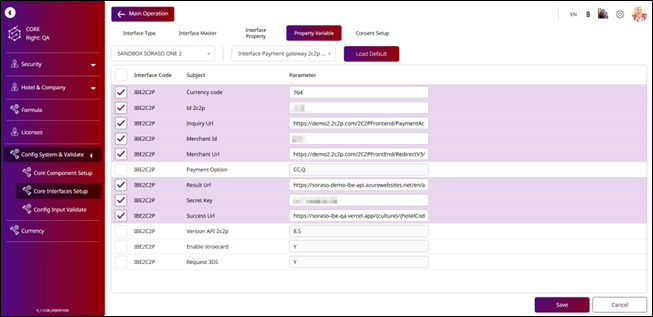
Note: Ensure the correct 2C2P interface, environment, currency, IDs, and URLs are set. Save and test to confirm the payment integration works properly.
2.5 Configure Consent Setup
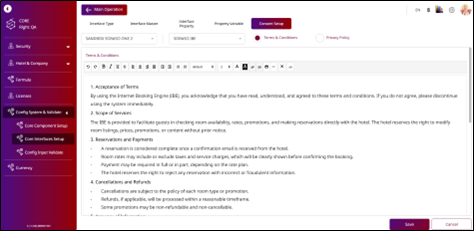
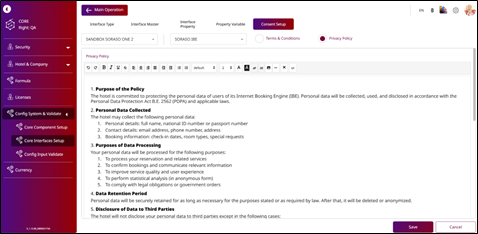
This function allows staff to configure the Consent Setup, which defines the Terms & Conditions and Privacy Policy displayed to guests during the booking or ordering process. Guests must review and agree to these terms before completing their transaction. The configured content will appear in the Terms & Conditions pop-up during booking and in the Privacy Policy pop-up within the guest profile page on the IBE website. This ensures guests are fully informed about hotel policies and data privacy requirements before finalizing their booking.
To perform the task:
- Select the Hotel.
- Select the interface as SORASO IBE.
- The system will default to the Terms & Conditions section. Enter your hotel’s Terms & Conditions and adjust the paragraph formatting as needed.
- Select the Privacy Policy , enter your hotel’s Privacy Policy, and edit the paragraph formatting as needed.
- Press Save to apply the changes to the SORASO IBE interface.
3. Booking Policy Setup
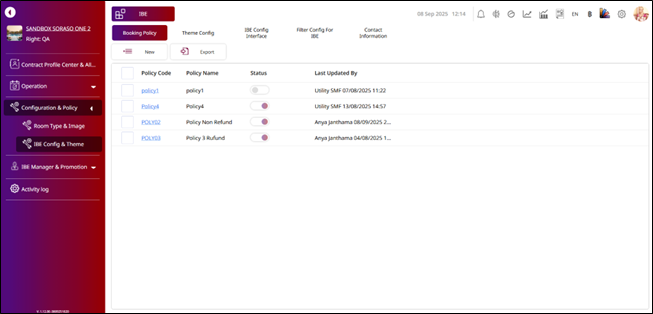
Available under Business Type IBE > Configuration & Policy > IBE Config & Theme > Booking Policy , this function allows staff to configure the booking policies that apply to rates for reservations made through the Internet Booking Engine (IBE). These policies define key conditions such as Check-In/Check-Out Policy, Amendment Policy, No-Show Policy, and Cancellation Policy. By setting up booking policies, hotels ensure that guests are clearly informed about the rules governing their reservations. This reduces misunderstandings, protects revenue, and maintains consistency across all online bookings.
To perform the task:
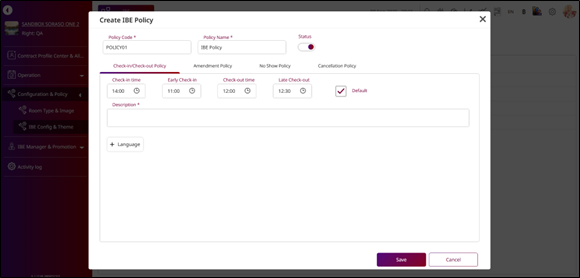
- Press New – The system will display the Create IBE Policy pop-up.
- Enter the Policy Code and Policy Name.
- Check-in/Check-out Policy:
- Check-in Time – Select the time to set as the check-in time.
- Early Check-in – Select the time to set as the early check-in time.
- Check-out Time – Select the time to set as the check-out time.
- Late Check-out – Select the time to set as the late check-out time.
- Description – Enter the description for the Check-in/Check-out Policy.
- Press Default – Allow the system to display the Check-in/Check-out Policy on the IBE.
- Press Amendment Policy tab.
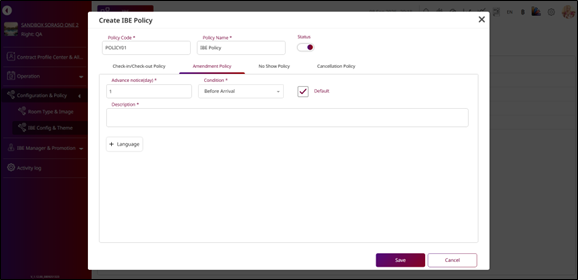
- Amendment Policy:
- Advance Notice (day) – Enter the number of days required for advance notice.
- Condition – Select a condition.
- Description – Enter the description for the Amendment Policy.
- Press Default – Allow the system to display the Amendment Policy on the IBE.
-
Press No Show Policy tab.
-
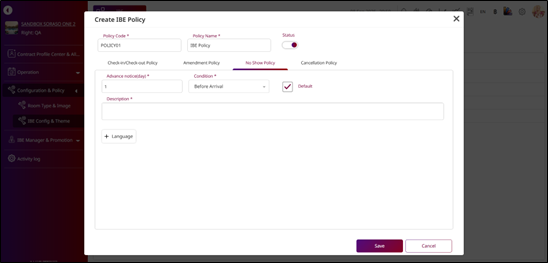
No Show Policy:
Advance Notice (day) – Enter the number of days required for advance notice.
Condition – Select a condition.
Description – Enter the description for the No Show Policy.
-
Press Default – Allow the system to display the No Show Policy on the IBE.
-
Press Cancellation Policy tab.
-
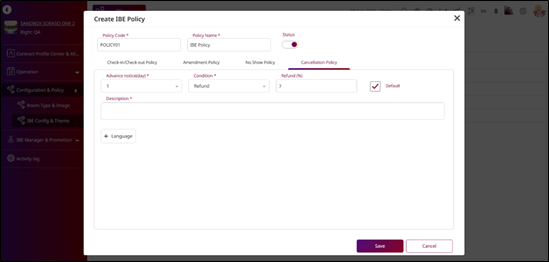
Cancellation Policy:
Advance Notice (day) – Select the number of days required for advance notice.
Condition – Select a condition; if you select Refund, the system will allow you to enter the Refund(%).
Description – Enter the description for the Cancellation Policy.
-
Press Default – Allow the system to display the Cancellation Policy on the IBE.
-
If you want to add the policy in another language, press + Language and enter the description in the desired language.
-
Press Save to create the new booking policy.
Note: The booking policy will only apply when used under the selected rate.
4. Apply a Booking Policy to Rates
Available under Business Type IBE > IBE Manager & Promotion > Dynamic & Rate , this function allows staff to apply a predefined booking policy to specific rates in the Internet Booking Engine (IBE). By linking policies such as Check-In/Check-Out rules, Amendment conditions, No-Show handling, and Cancellation terms to a rate, hotels ensure that guests are presented with clear and consistent rules during the booking process. Applying booking policies to rates helps maintain transparency, reduces the risk of disputes, and ensures that all reservations follow the hotel’s operational and financial guidelines.
To perform the task:
- Select an existing Rate to use on the IBE or create a new rate.
- Enter the IBE Rate Name , which will be displayed on the IBE.
- Press the Search icon in the IBE Policy field.
- Select a Booking Policy from the IBE Policy pop-up.
- Press Save to apply the selected booking policy to the rate.
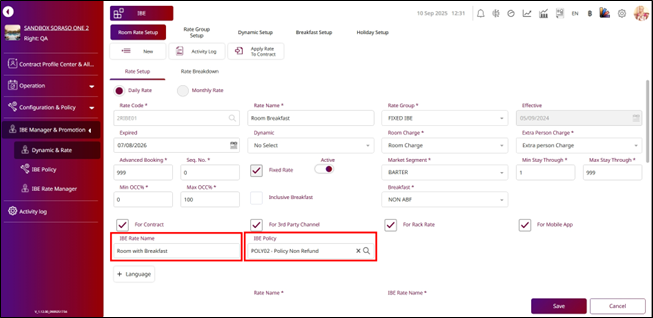
Note: Always verify that the correct booking policy is linked to each rate plan to avoid inconsistencies in guest reservations.
5. Set Contract for IBE
Available under Business Type IBE > Contract Profile Center & Allotment , this function allows staff to configure and assign a contract for use within the Internet Booking Engine (IBE). A contract defines the agreement terms such as rates, availability, and booking conditions that will be applied to online reservations through the IBE, and only one contract can be applied at a time to ensure consistency in how rates and booking policies are presented to guests while preventing conflicts between multiple agreements.
To perform the task:
- Select an existing Contract to use on the IBE or press New to create a new contract.
- Fill in the contract information. The important part is to select a BU that includes the IBE BU. Once selected, the system will display the For IBE option.
- Press the For IBE checkbox to mark this contract for IBE.
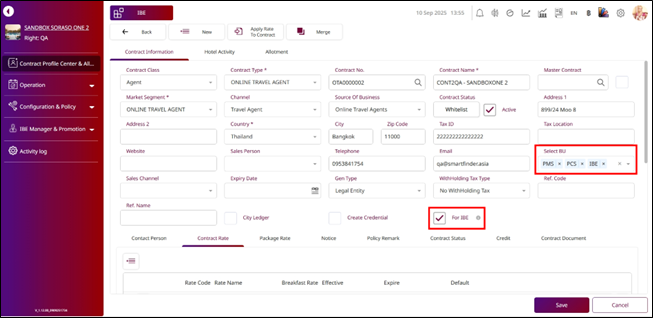
- Press Contract Rate.
- Press the Add icon and select a Rate from the Rate pop-up to link it with this contract for use on the IBE.
- To edit the rate price, press the Select & Go icon to open the rate you want to edit.
- Press the Edit icon to view rates day by day. The Update Contract Rate pop-up will be displayed.
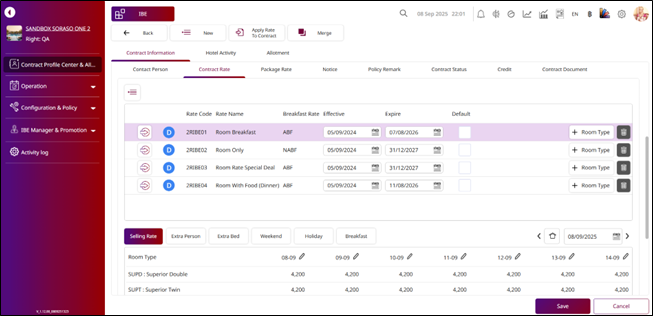
- Select the Base Rate and update the price by room type. Set the effective dates using Apply From and Apply To fields.
- Press Save in the Update Contract Rate pop-up. If the updated price is lower than the base rate, the system will display the discount percentage for saving this rate on the IBE.
- Press Save to confirm and apply the changes.
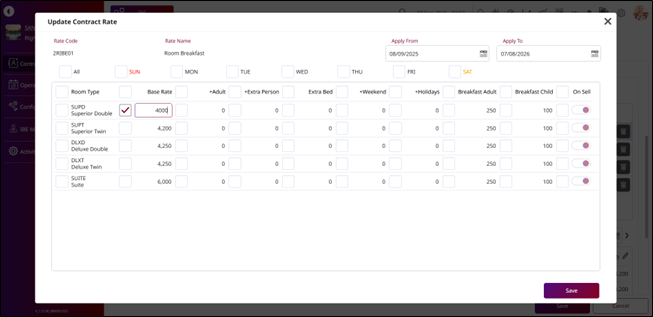
Note: Only one contract can be applied to IBE at a time. Ensure the correct and most up-to-date contract is selected to avoid inconsistencies in rates and booking policies.
6. Set Group Facilities
Available under Business Type IBE > Configuration & Policy > Room Type & Image > Group Facilities , this function allows staff to configure the facilities and amenities shared across a hotel group, such as pools, gyms, restaurants, or meeting rooms. Setting group facilities ensures consistent information across the Internet Booking Engine (IBE) and other guest-facing platforms, improving the booking experience and keeping facility details standardized across all properties.
To perform the task:
- Press New.
- Enter the Facilities Code.
- Enter the Facilities Name.
- Enter the Seq No.
- To add another language, press + Language , select the language you want to add, and enter the Facilities Name in that language.
- Press Save to create a Group Facilities.
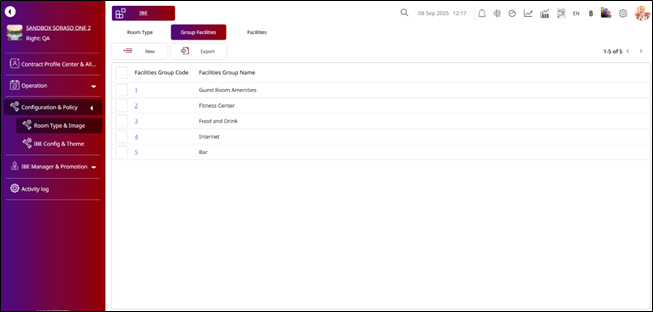
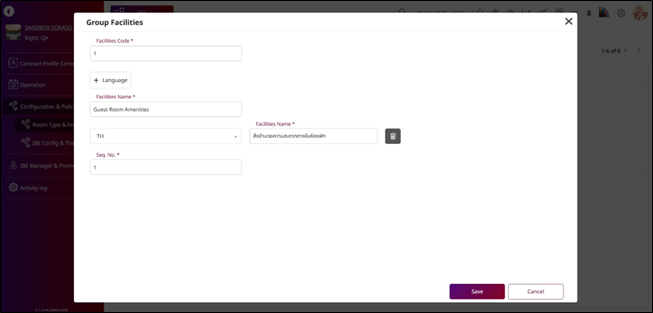
Note: Group Facilities will be created as a master list and can later be assigned to specific room types or packages for display on the IBE.
7. Set Facilities
Available under Business Type IBE > Configuration & Policy > Room Type & Image > Facilities , this function allows staff to configure property-level facilities under their group facilities, such as pools, gyms, restaurants, or parking. By managing facilities at the property level, hotels ensure that guests see accurate and specific amenities for each location in the Internet Booking Engine (IBE) and other guest-facing platforms. This provides guests with clear expectations and enhances the booking experience by showing exactly what is available at the selected property.
To perform the task:
- Select a Group Facilities.
- Press New.
- The Facilities Group Name will default to the group facilities you selected and cannot be edited.
- Enter the Facilities Code.
- Enter the Facilities Name.
- Enter the Seq No.
- To add another language, press + Language , select the language you want to add, and enter the Facilities Name in that language.
- Press Save to create a Facilities.
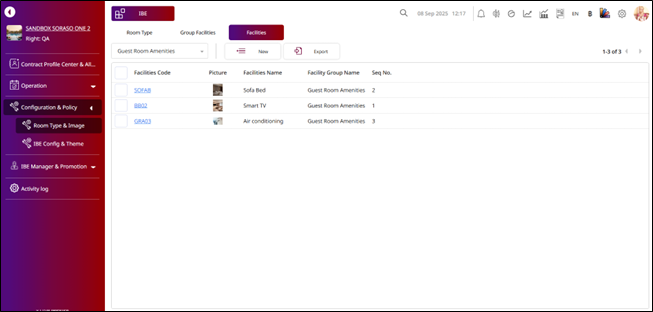
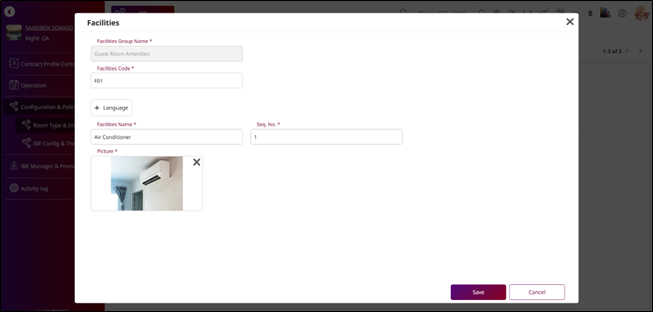
Note: Facilities created under a Group Facilities will follow the sequence number (Seq No.) order and will be displayed accordingly on the IBE.
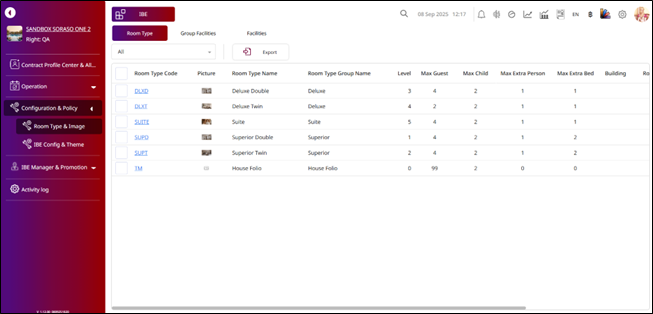
8. Set Room Type
Available under Business Type IBE > Configuration & Policy > Room Type & Image > Room Type , this function allows staff to configure the room types available in the Internet Booking Engine (IBE), such as standard rooms, deluxe rooms, or suites. Setting up room types ensures guests see accurate details about available accommodations, helping them make informed booking decisions and improving the overall booking experience.
To perform the task:
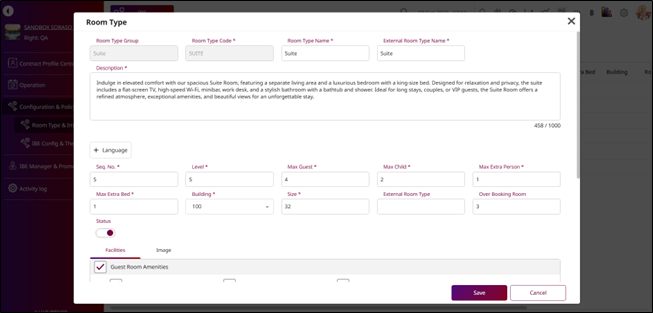
- Select an existing Room Type. The system will display the Room Type pop-up.
- Enter the External Room Type Name to define the name shown on the IBE.
- Enter the Description.
- To add another language, press + Language , select the language you want to add, and enter the Room Type Name, External Room Type Name, and Description in that language.
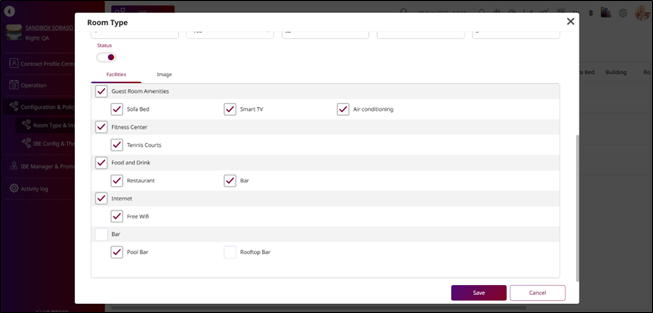
- Select the Facilities for this room type.
- Press the Image tab.
- Press Upload to add a picture for this room type. Each room type can have a maximum of 8 pictures.
- Press Save to apply the changes.
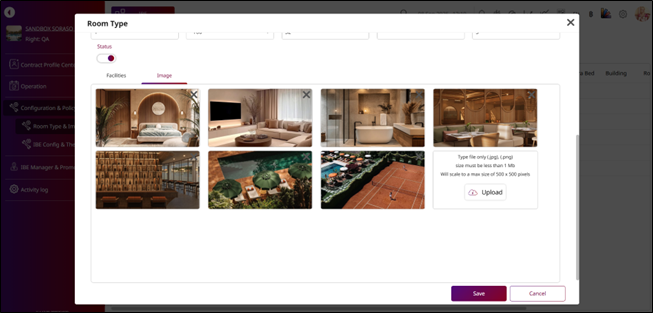
Note: Ensure that room images are clear, optimized, and within the maximum upload limit ( 8 pictures per room type). Images will be displayed on the IBE according to the upload sequence.
9. Set Theme Config
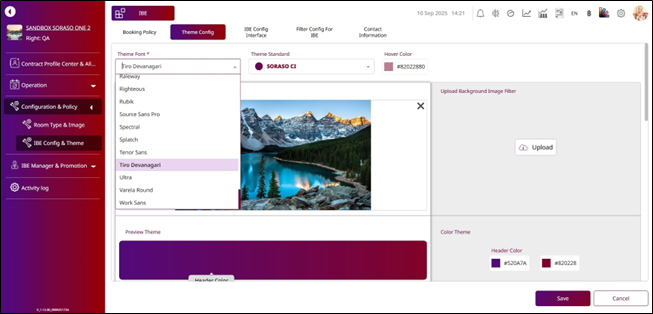
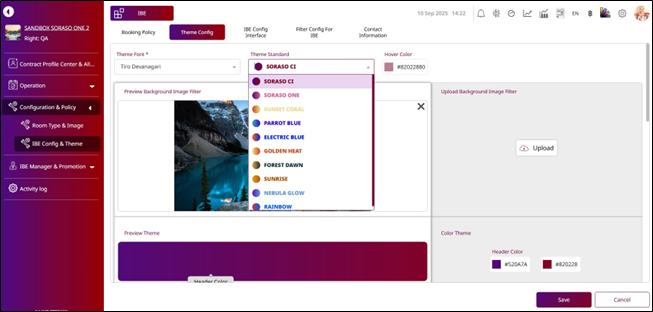
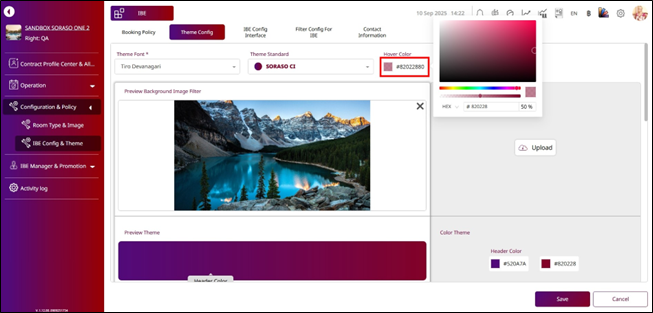
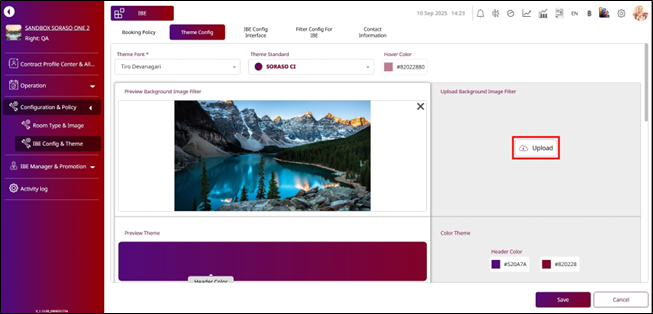
Available under Business Type IBE > Configuration & Policy > IBE Config & Theme > Theme Config , this function allows staff to configure the theme, font, and background image for the Internet Booking Engine (IBE) website. By customizing these elements, hotels can align the IBE with their brand identity and maintain a consistent look and feel across all guest-facing platforms. Proper configuration enhances the user experience, making the booking interface more visually appealing, professional, and easier for guests to navigate.
To perform the task:
- Select the Theme Font to set the font for the Internet Booking Engine (IBE) website.
- Select the Theme Standard to set the website color. If you do not want to use a standard theme color, you can customize it.
- Set the Hover Color to define the button hover color on the IBE.
- Press Upload to add a picture as the background image for the IBE website.
- To change the color without using the theme standard, press a color shown in the Color Theme panel on the right side.
- Press Save to apply the changes.
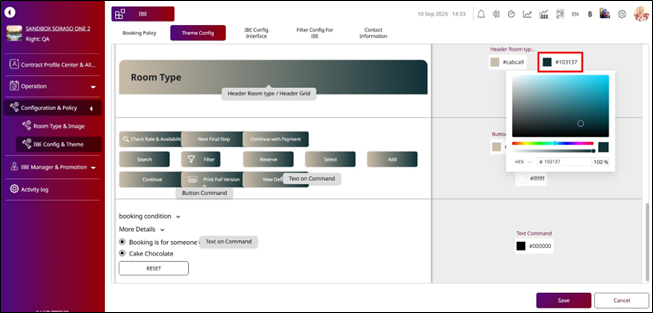
Note: Theme settings, including fonts, colors, hover effects, and background images, will apply across the entire IBE website to ensure a consistent look and feel for guests. You cannot add more colors; you can only change existing theme colors.
10. Set IBE Config Interface Payment Method
Available under Business Type IBE > Configuration & Policy > IBE Config & Theme > IBE Config Interface , this function allows staff to configure the payment method on the Internet Booking Engine (IBE) website by integrating secure payment gateways to process online transactions. Currently, the system supports only Pay Later and the 2C2P Payment Gateway, and staff can also set a description to display as the name of the payment method on the IBE website. Proper configuration ensures that guests can complete their reservations smoothly with secure payment options, while the hotel maintains accurate transaction records for financial tracking.
To perform the task:
- Select the Type of Payment as Pay Later or Payment Gateway.
- Press Edit on the grid.
- Enter the Description to change the name of the payment method shown on the Internet Booking Engine (IBE) website.
- For Payment Gateway, select the Interface Code as Interface Payment Gateway 2C2P for SORASO IBE.
- Enter the Seq No.
- Enter the Minute to set the payment timeout.
- Press Save to apply the changes.
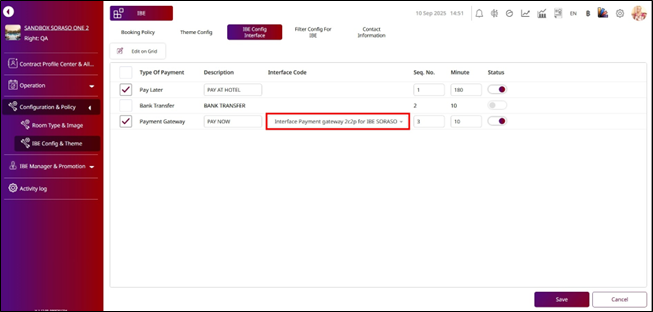
Note: The interface code for the Payment Gateway must match the code configured in the Core Interface Setup; otherwise, payments will not process correctly. The payment method setup also determines how guests see and use payment options on the IBE, so ensure the sequence number and timeout settings are aligned with hotel policy.
11. Set Filter Config for IBE
Available under Business Type IBE > Configuration & Policy > IBE Config & Theme > Filter Config for IBE , this function allows staff to configure filters in the Internet Booking Engine (IBE) by adjusting the sequence number (Seq No.) and enabling or disabling the filter status. It also provides the option to rename filters, but it is strongly recommended not to change filter names, as the system relies on them as keys for applying filtering logic.
To perform the task:
- Press the Type Name.
- Enter the Seq No.
- To add another language, press + Language , select a language, and enter the Filter Name in that language.
- Press Save to apply the changes.
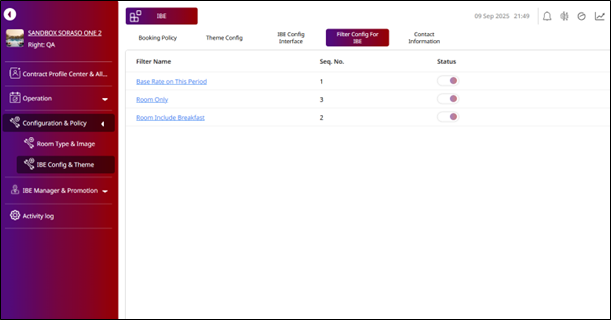
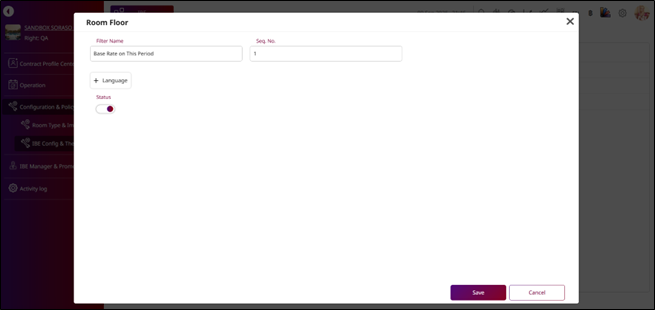
Note: Avoid renaming filters, as the system relies on filter names as keys for applying filtering logic.
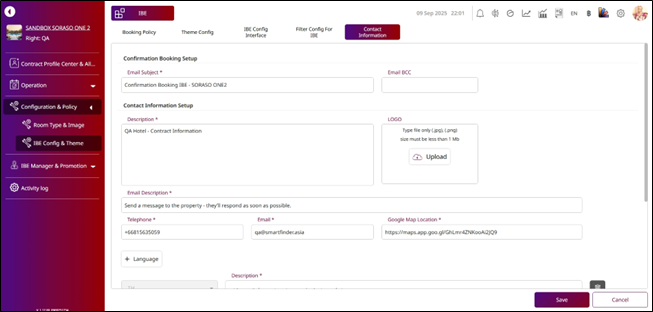
12. Set Contract Information
Available under Business Type IBE > Configuration & Policy > IBE Config & Theme > Contract Information , this function allows staff to configure the contract information, logo, and the email subject for the Internet Booking Engine (IBE). By setting up these details, hotels can ensure that guests receive consistent and professional communication, with the correct branding and contract details reflected in emails generated through the IBE. Proper configuration helps maintain brand identity, enhances guest trust, and ensures that all automated messages align with the hotel’s communication standards.
To perform the task:
- Enter the Email Subject to set the subject line for booking confirmation emails.
- Enter the Email BCC to add an address that will receive a copy of the booking confirmation email.
- Enter the Description for this contract information.
- Press Upload to upload a logo to use on the IBE.
- Enter the Email Description to be displayed in the email body on the IBE.
- Enter the Telephone number to be shown on the IBE.
- Enter the Email address to be shown on the IBE.
- Enter the Google Map Location by copying the share link of the Google Map location you want to set as the destination.
- To add another language, press + Language , select a language, and fill in the information in that language.
- Press Save to apply the changes.
13. Set IBE Policy
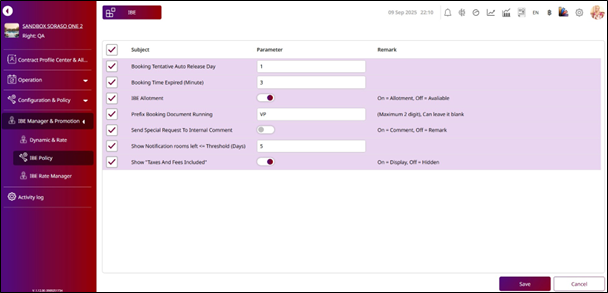
Available under Business Type IBE > IBE Manager & Promotion > IBE Policy , this This function allows staff to configure key settings in the Internet Booking Engine (IBE), such as the prefix document running number, displaying “Tax and fees included”, showing the number of rooms left, and sending special requests from the IBE to the PMS. These settings help ensure clear booking information for guests and smooth communication between systems.
To perform the task:
- Select the Subject that you want to set or edit.
- Enter the number of days in Booking Tentative Auto Release Day to automatically release tentative bookings after the specified period.
- Enter the number of minutes in Booking Time Expired (Minute) to set the timeout period for bookings that have not been successfully paid.
- Turn on the IBE Allotment toggle to allow the IBE to book rooms using allotment. Turn it off if you want the IBE to book based on the hotel’s available rooms.
- Enter the Prefix Booking Document Running to define the Booking Confirmation Number format.
- Turn on the Send Special Request to Internal Comment toggle to send special requests from the IBE to PMS Internal Comment. If turned off, the system will send them to the PMS Booking Notes.
- Enter a number in Show Notification Rooms Left. When the available rooms in the IBE are equal to or less than this number, the system will display the text Room(s) Left on the IBE.
- Turn on the Show "Tax and fees included" toggle to display this text on the IBE. If turned off, the text will not appear.
- Press Save to apply the changes.
Note: These booking settings directly affect how reservations, availability, and messages are displayed on the IBE. Ensure values and toggles are configured according to hotel policy.